
UI

WoW Ubuntu 3.1 Guide - Step 4: Installing and Configuring World of Warcraft
Fjork — Mon, 04/20/2009 - 08:16
Step 4: Installing and Configuring World of Warcraft
Open / Install Warcraft Folder in Wine
If you converted to Ubuntu on a dual-boot (didn’t format) you can actually open the World of Warcraft folder from your previous installation. I hope you did backed up all of your files and patches just in case.
If you didn’t convert, download the Install.exe for Warcraft from Blizzard (6.5 gb) and when it is done, Right-Click on it, and select “Run with Wine”.
Find some mirror sites (or archive) for the patches. Same thing for each patch. Right-Click “Run with Wine.”
*Note* If you have to install (as opposed to playing directly from installed w0w on your Windows install), you will not have a Config.WTF file, you will instead have a RunOnce.WTF file.
*Note* The Blizzard Updater will say “Please enable Javascript” while installing each patch. This is a known bug, but does not affect your install.
Locate your Config.WTF / RunOnce.WTF File
Application->Wine->Explore C:\ then “Program Files->World of Warcraft->WTF”
Right-Click and “Edit in Text Editor”
Make the following changes: (Edit the line that exists or create new)
SET ffxNetherWorld “0”
SET gxAPI “OpenGL”
SET ffxGlow “0”
SET gxWindow “1”’
SET gxRefresh “??” (This should be the Refresh Rate of your monitor used by Ubuntu.)
Choose One: (Not both)
SET gxMaximize “0” (Maximize Windowed Mode.)
SET gxResolution “1024x768” (1024x768 is the size it boots, regardless of monitor.)
If any of the previous lines do not exist, CREATE them. All three MUST be in your Config.WTF (RunOnce.WTF) for w0w to run properly (to start)
If this is your first time running WotLK (and all patches are complete), load the program, and exit the program. The RunOnce.WTF will have been replaced by the Config.WTF
Run World of Warcraft
Applications -> Wine -> Folders -> World of Warcraft -> Warcraft Launcher.exe
Exit World of Warcraft. Do NOTHING else. Just exit.
Re-Configure Wine and Warcraft to support each other
This step required for ATI video cards. Optional for a small fps boost on Nvidia video cards.
Open a Terminal: (Applications --> Accessories --> Terminal
Type command: regedit
If this does not work, or gives an error, Windows may need to renistalled on the system.
Find HKEY_CURRENT_USER\Software\Wine\
Highlight the wine folder in the left hand pane by left clicking on it. The icon should change to an open folder.
Click right on the wine folder and select [NEW] then [KEY].
Replace the text "New Key #1" with OpenGL (CaSe Sensitive).
Right click in the right hand pane and select [NEW] then [String Value].
Replace "New Value #1" with "DisabledExtensions" (CaSe sensitive).
Then double click anywhere on the line, a dialog box will open.
In the value field type "GL_ARB_vertex_buffer_object" (without the quotes).
If any of the previous steps are not performed, World of Warcraft will not function on ATI video cards. As soon as one bit of text hits your screen then you are in trouble.
This step required for ATI video cards. It is not recommended for Nvidia Video cards
Download the out of date Addon “ApplyToForeHead”. Place it in your Addons folder as you normally would.
Applications -> Wine -> Explore C:\
Program Files -> World of Warcraft -> Interface -> Addons
Run World of Warcraft
Applications -> Wine -> Folders -> World of Warcraft -> Warcraft Launcher.exe
ATI Video Cards:
Enable the Out of Date Addon ‘ApplyToForeHead’ that you previously downloaded and installed.
Login to play-test Warcraft by going inside and outside of buildings, getting in at least one fight, reading your quest-log, and texting in chat.
Everything should be functioning normally except your sound might suck.
If there are no errors, everything has been done perfectly! Go get the rest of your AddOns and install them, but don’t get rid of ‘AppyToForehead’.
Exit game.
WoW Ubuntu 3.1 Guide - Step 3: Installing and Configuring Wine
Fjork — Mon, 04/20/2009 - 08:12
Step 3: Installing and Configuring Wine
Install Wine
http://www.winehq.org/download/deb
Wine is a program for Linux that accurately runs windows-intended programs on Linux operating systems.
Follow the instructions listed under the link explicitly. This will ensure your version of Wine is not only always up to date, but safest.
Wine will now be ‘hidden’ in your files. Because wine installs itself usually under “ $ /usr/local/bin/.wine/ and Ubuntu doesn’t really read files that have /. / in the file name.
If you wish to open Wine. Applications -> Wine -> Winecfg
I know I'm missing a step here. Please comment if you remember what I forgot.
Reboot system.
Turn off Desk Effects
System->Preferences-> Appearance
Turn off the “special effects”. This is the last tab. Select “None”.
Reboot system.
WoW Ubuntu 3.1 Guide - Step 2: Installing and Configuring Ubuntu
Fjork — Mon, 04/20/2009 - 08:10
Step 2: Installing and Configuring Ubuntu
Install Ubuntu
You will be asked for a username and password. This will be the "root" user and your user. (sudo = root when you are typing in terminal mode)
*Note* You should create a secondary account for w0w playing as there are no system protections when you are accessing interwebz programs such as video games, online poker, etc through the root login. This can be done from the Virtual Terminal or the gui. This should be done after you have everything configured and have play-tested World of Warcraft to your satisfaction. However, unfortunately, you’ll then have to configure and play-test AGAIN for the new user.
From Gui, Systems->Administrator-> User Groups
From Virtual Terminal (Ctrl + Alt + F1)
sudo adduser username
Follow prompts.
From the Gui, you will have to select “root” (which is greyed out) and click ‘Unlock’ before it will allow you to Add a user. Each user must be configured separately.
Update Ubuntu
Currently for 8.10 there are 289 Updates to have installed before you start configuring your machine. DO THIS FIRST.
You will need to be connected to the internet to do this. Picture your “Start Menu” as being on the top instead of the bottom of the page. See the Network Button on the top-right? Configure it.
Check Mozilla FireFox to make sure you have Internet.
If you do, there should be a red and white arrow pointed down next to your network status icon. Click it.
Install all updates.
This can also be done through: System -> Administration -> Update Manager
Reboot system.
How do I determine my Video Card make and model?
Open a Terminal.
Applications -> -> Terminal
Type the following:
lspci | grep VGA
*Note* If the grep returns two video cards, you need to determine which one is your on-board video card. Sometimes if the cards are from the same manufacturer, they will conflict and you will need to turn off your on-board card in the BIOS. If you are not sure how to do that, either do some forum-crawling or send me a PM on the site.
Installing ATI Video Card Drivers
System -> Administration -> Hardware drivers
Select “ATI Driver” Should be listed as Proprietary and approved by Ubuntu.
Please ensure the Driver you have selected is the “Catalyst 9.3”. If Linux does not support you with this driver, it should be downloaded to your desktop and manually installed.
The ATI Drivers only support video cards series 2400 and greater.
Select “Enable this Driver”.
Reboot system.
*Note* Many times the graphic-rendering is choppy and can lag using the Default ATI Proprietary Drivers submitted through Ubuntu because they do not install properly. If this is the case, please follow the next instructions (I had to do this on my ATI Radeon Mobility 3450).
Source: http://wiki.cchtml.com/index.php/Ubuntu_Intrepid_Installation_Guide
*Note* If you are using a 64-bit system, please follow the instructions on the website directly, but read the entire site before beginning. There is more end-user configuration required.
Text in green should be entered in Terminal.
Open a Terminal: (Applications -> -> Terminal)
1. Install the necessary programs
sudo apt-get install build-essential cdbs fakeroot dh-make debhelper debconf libstdc++5 dkms
Download page: Catalyst 9.4. This package contains both the 32-bit and 64-bit driver.
Ensure your terminal is set for the folder the package downloaded in. (aka: $ cd Desktop)
2. Create .deb packages.
sudo sh ati-driver-installer-9.4-x86.x86_64.run –buildpkg Ubuntu/intrepid
3. Install .debs.
sudo dpkg -i xorg-driver-fglrx_8.602-0ubuntu1_i386.deb fglrx-kernel-source_8.602-0ubuntu1_i386.deb fglrx-amdcccle_8.602-0ubuntu1_i386.deb
4. Finish the Installation and Configure
sudo gedit /etc/X11/xorg.conf
A window will pop-up with your .conf file. Locate the “Device” section.
If the following line is not in the “Device” Section, add it.
Driver "fglrx"
Save file and exit. Return to your Terminal.
sudo aticonfig –initial –f
Exit terminal. Reboot computer.
Installing Nvidia Video Card Drivers
System -> Administration -> Hardware drivers
Select “Nvidia Driver 180” Should be listed as Proprietary and approved by Ubuntu.
The Nvidia Drivers only support video cards
Roughly GeForce 5100 and greater.
Roughly Quadro NVS 290 and greater.
Check here if you are not sure if your care is supported
Select “Enable this Driver”.
Reboot system.
WoW Ubuntu 3.1 Guide - Step 1: Planning and Setup
Fjork — Mon, 04/20/2009 - 08:08
Step 1: Planning and Setup
Lower ALL of your World of Warcraft settings to minimum. Archive all AddOns then remove them. Archive all the Patches you have, we might need them. (The usefulness of this comes in later.)
Backup ALL files to burned CD and/or Flash Drive. We are going to attempt to keep all of your Windows Files (including Warcraft), but life isn’t always fair, is it?
Get your copy of Ubuntu. You can download it (along with a iso burner program) straight from http://www.ubuntu.com or if you prefer, you can purchase a cd to be sent to you for a few bucks (the cost of the cd. The software is free.)
Make a copy of your Ubuntu install cd. (Mine was picked up by my toddler and shoved into the fireplace grating. The backup is free (with an “Image Burner”), and good to have.
https://help.ubuntu.com/community/BurningIsoHowto
Read this if you have already gotten lost:
https://help.ubuntu.com/community/SwitchingToUbuntu/FromWindows
Don’t read to long, or you’ll stay lost. I’m walking you through.
BootFromCD
https://help.ubuntu.com/community/BootFromCD
Here we are actually going to be booting Ubuntu from the CD. You have the option of exploring Ubuntu, or installing it. We are going to choose install.
Migration Assistant (informational)
https://help.ubuntu.com/community/SwitchingToUbuntu/FromWindows/TransferringFilesAndSettings
https://help.ubuntu.com/community/MountingWindowsPartitions
You can do that, but I’ll tell you now it’s possible to setup a dual-boot, in which case all your Windows files will be preserved and Ubuntu will usually show them all in your files.
WoW Ubuntu 3.1 Guide
Fjork — Sun, 04/19/2009 - 21:03
All suggestions are welcome as this will be an evolving document.
This will be a book page as Garreth, myself, Grasen, Aidin, and Delirium are done tearing it apart (and it will look nicer.)
All information provided has been referenced by the sources referenced through the document and as can be seen I can confirm that they work. These instructions are for Ubuntu 8.10 Intrepid, however they should work fine with Ubuntu 9.04 after release. I might play-test and find out.
Something rarely mentioned by people who support OpenSource is the large amount of End-User work (that’s you) it takes to make a Linux-based system function the way you want it to. If you do not consider yourself at least ‘moderately’ tech-savvy, take a long moment to consider your options before making the conversion to Ubuntu. (aka, if the following words mean nothing to you, Ubuntu isn’t for you unless you have guild/family/friends to help. ‘Mozilla’, ‘Torrent’, ‘manual install’, ‘drivers’, ‘dual-boot’, ‘regedit’, ‘refresh rate’. Not all of them, but if you’re looking at one of the seven than Ubuntu probably isn’t for you.)
*Note* Currently Blizzard does not support Mouse-Hardware properly while using OpenGL. In Windows when your system lags, your mouse does not. In Linux, your mouse will lag when your system lags. (aka: Wintergrasp, 25man Raiding, Malygos, etc) Please visit the Macro’s and Recommended AddOns page for more information and suggestions.
If you see something wrong, PLEASE post!
This is the Linux x86 and Linux x86_64 Drivers Released 03/24/2009
ATI has recently developed the Catalyst software support for Linux and it is very much appreciated but is not quite enough to work perfectly right off the bat.
The ATI Drivers only support video cards series 2400 and greater. If you have an ATI card prior to series 2400 DO NOT GO FURTHER.
This is WineHQ 's World of Warcraft page. Most of the information below will be coming directly from this page.
Please read this section for a quick overview before commending on ‘issues’ that might be unable to be corrected. (aka: mini-map is white while indoors, mouse-lag, etc)
http://www.wowwiki.com/Wine
Wowwiki's Wine Page
http://www.wowwiki.com/Wine_miscellaneous_info
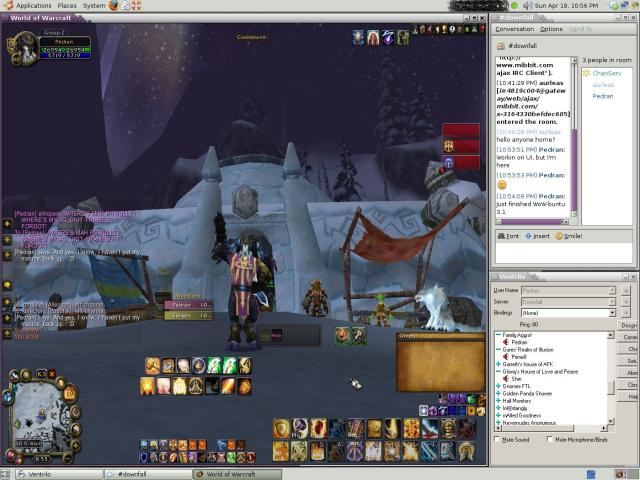 Wow-Buntu 3.1 ScreenShot: Where's Pitbull?
Table of Contents
Step 1: Planning and Setup
Step 2: Installing and Configuring Ubuntu
Step 3: Installing and Configuring Wine
Step 4: Installing and Configuring
Step 5: Installing and Configuring Sound / Ventrilo
(Under Future Construction because Garreth ran me through it to fast and I don’t remember what he made me do……)
Step 6: Macro’s and Recommended AddOns
(Under Future Construction because to be frank, I’m a Tankadin and don’t need that wide a variety of macro’s.)
Step 7: Troubleshooting and current known issues
(Under Future Construction. I am not a Linux/Ubuntu guru. I learned everything and setup my system over a period of three days.)


Downfall Guild Raid Addon Pack
garreth — Fri, 04/17/2009 - 01:41
Click here to download the Downfall Guild Raid Addon pack!
All these addons and more can be managed easily via the Curse Updater (www.curse.com/client). Check it out! Below is a list of the included addons and a quick summary of what they do:
Curse Client On Ubuntu Linux
garreth — Thu, 04/16/2009 - 16:43
I used WoWMatrix because they released an addon updater that ran native in Linux. With the death of WoWMatrix (which I do agree with to a point), I've decided to give Curse a shot. So far, it works beautifully in the latest version of Wine (1.1.19 for me).
Things to consider:
- When installing the Curse client, uncheck "Autostart" and "Install Curse Profiler"
- Many of your addons will be flagged as "Unidentified" if you used WoWmatrix. Simply go to the Unidentified tab and reinstall these, or go the "Find" tab, search for the addon and reinstall that way.
- If you installed WoW to its default folder (~/.wine/drive_c/Program Files/World of Warcraft) then Curse should be able to discover your WoW directory right away.
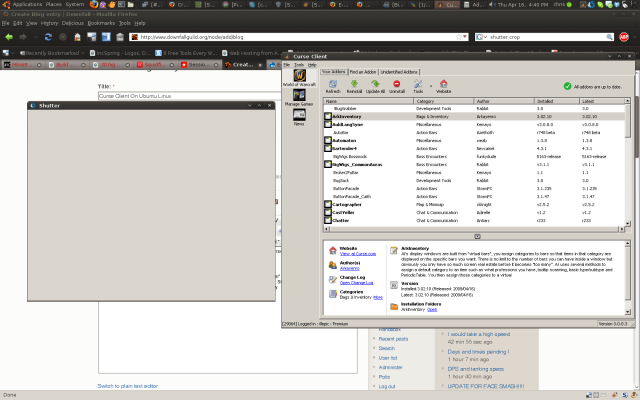 Curse Client Running in Ubuntu Linux: The Curse Client runs great under Wine in Linux
Curse Client Running in Ubuntu Linux
garreth — Thu, 04/16/2009 - 16:42
The Curse Client runs great under Wine in Linux


Recent comments
7 hours 17 min ago
4 weeks 1 day ago
7 weeks 1 day ago
7 weeks 2 days ago
9 weeks 1 day ago
9 weeks 1 day ago
9 weeks 1 day ago
10 weeks 2 days ago
11 weeks 3 days ago
13 weeks 17 hours ago